Why care?
- User Experience (UX)
- If the site is loading too long, visitors might feel frustrated. When the site loads faster, it feels more responsive and it keeps visitors engaged.
- Search Engine Optimisation (SEO)
- Some if not most search engines factor the site speed into rankings.
- Mobile Performance
- For people with limited data plans on mobile devices, it’s better to have a smaller/faster site so you use less data.
- Ressource Efficency
- A smaller site saves bandwidth on your servers.
- Advantages
- Users are likely to abandon slow sites in favor of faster alternatives.
Tip #1 – Images
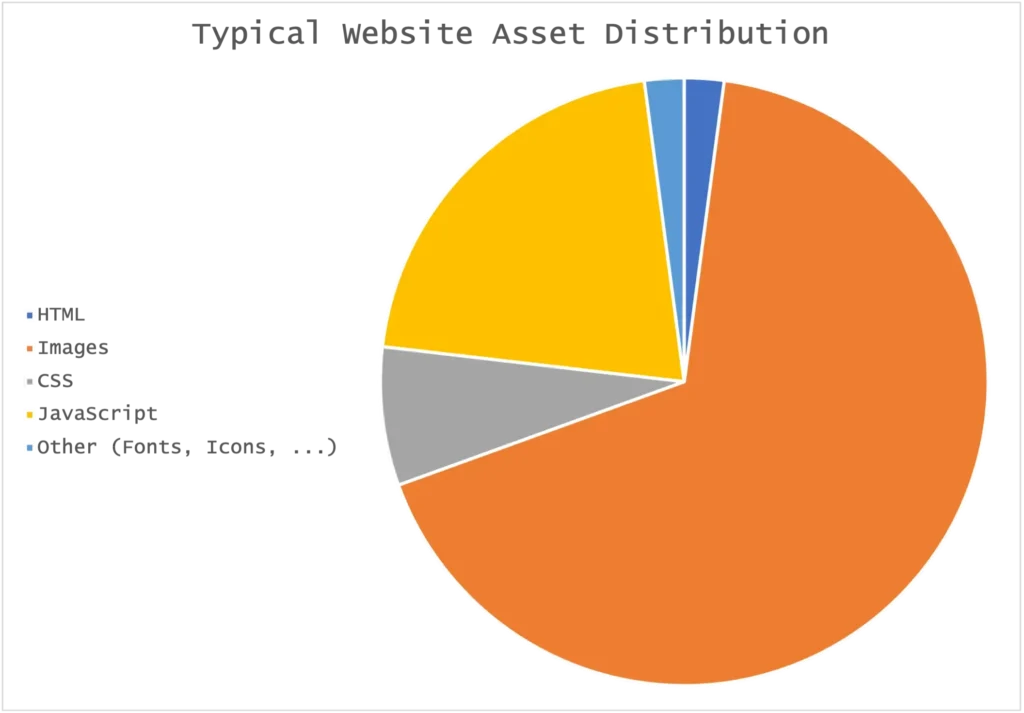
Commonly you’d serve images as .png’s or as .jpg’s, however these formats aren’t optimised for the web. Instead you should use webp or even avif and for vector graphics svg.
JPEG vs WEBP
This JPEG image (1280×960) is around 606KB

The same image in WebP format is roughly 94KB. (~84% less)

Also, the quality doesn’t really suffer.
WebP also supports Alpha Channels (Transparency) and Animations. It also preserves gradients and edges better. To learn how WebP works under the hood, visit https://web.dev/learn/images/webp.
There’s also AVIF which is even better than WebP but it’s not yet supported in all major browsers.
| Feature | JPEG | WebP | AVIF | PNG |
|---|---|---|---|---|
| Name | Joint Photographic Experts Group | Web Picture | AV1 Image File Format | Portable Network Graphics |
| Lossy compression | Yes | Yes | Yes | No |
| Lossless compression | No | Yes | Yes | Yes |
| Transparency (Alpha) | No | Yes | Yes | Yes |
| Animation | No | Yes | Yes | No |
| Better compression | No | Yes | Yes | No |
| Typical file size vs JPEG | 100% | ~65–75% | ~50–60% | ~200–500% |
| Summary | Only for fallback | Best balance https://caniuse.com/?search=webp | The best, just not widely supported https://caniuse.com/?search=avif | Not recommended; Only for fallback with Alpha https://caniuse.com/?search=png |
* I thought I’d add the Name of these Formats to the table as many people (including me) actually don’t know what the shorthand names stand for. JPEG surprised me the most! Also, AVIF has it’s name from the AV1 Video Codec, for more comparisons, you can check out https://web.dev/learn/images/avif, where they talk more about AVIF in detail.
If you consider using AVIF but still want to support older browsers you can use a <picture> element with fallback image formats. For more info on this HTML tag, visit https://developer.mozilla.org/en-US/docs/Web/HTML/Reference/Elements/picture. It’s quite cool and can also do some other stuff such as changing the image based of factors such as viewport size or orientation, it’s worth looking into it!
Personally, I like to use WebP as it’s a nice mix of everything and supports Transparency. It’s a great all-rounder, not just for the Web but also for programs, just because of the small file size. There’s actually a CLI-Tool by Google (cwebp) to convert images to WebP, however it requires knowledge of the terminal and is quite complicated: https://developers.google.com/speed/webp/docs/using, perhaps you’re better off using an online converter.
Tip #2 – Minify HTML, CSS and JS
Minifying is a process of removing stuff in code that doesn’t change anything in the product, eg. excess whitespace or comments.
Example:
Normal HTML, good for readability (296B):
<!DOCTYPE html>
<html lang="en">
<head>
    <meta charset="UTF-8">
    <title>My Website</title>
    <link rel="stylesheet" href="styles.css">
</head>
<body>
    <header>
        <h1>Welcome to my site</h1>
        <!-- This is a comment -->
    </header>
    <p>This is a sample paragraph.</p>
</body>
</html>
Minfied HTML (230B):
<!DOCTYPE html><html lang="en"><head><meta charset="UTF-8"><title>My Website</title><link rel="stylesheet" href="styles.css"></head><body><header><h1>Welcome to my site</h1></header><p>This is a sample paragraph.</p></body></html>As you can see there are no line breaks nor any comments. This process can be done with CSS and JavaScript as well. If you visit any site (yes even this one), open the DevTools (right-click -> inspect) and go to the sources tab, you can see that most scripts have min in front of .js (.min.js), when you actually look at those JS-scripts, it looks like a bunch of gibberish, optimised and readable by machines but not for humans.
You can minify yourself (manually removing excess whitespace, …) although this is a bad idea and really not done at all, instead there are many tools to help you with minifying stuff, i found one really nice in particular: https://minify.js.org. It’s a good idea to put a minifier in your website build process, for example Webpack can minify your code with plugins and Vite does it automagically.
Minification can also serve as a type of obfuscation. Obfuscation is the process of making code difficult to read or understand while keeping it functionally the same. It’s often used to protect intellectual property or make reverse engineering harder.
Although this is a really small optimisation and can saves a kilobyte at best (depending on the website) it’s still a step closer to a faster website and might help against reverse engineering (see the Obfuscation section)
Tip #3 – CDN & Caching
I thought I’d group these as they are both on like the hosting side of things.
CDN
A CDN (Content Delivery Network) is made out of many server across the globe. Let’s say you are in Los Angeles, but the server is located in Frankfurt (Germany). Your request would take way longer as it has to travel a long distance, resulting in a bad ping. A CDN solves that by putting the resources on many servers across the globe, so instead of you having to connect to a server in Frankfurt, you could connect to a server near Los Angeles which is a shorter distance thus resulting in a faster result and ping.
For small, rarely visited sites or sites that are national eg. a french site, it doesn’t really make sense to have a global CDN.
CDNs also protect you, if a server fails, another can take over. For example, CloudFlare has many servers across the globe, which can be nicely seen on their status page: https://www.cloudflarestatus.com, you can see if some locations are re-routed meaning that another server takes over for them.
If you want to learn more about CDNs and how they work in detail, check out https://wikipedia.org/wiki/Content_Delivery_Network!
Caching
Caching is really simple; Let’s say you are looking at this blog post everyday, instead of having to download the same images every time (and thus using bandwidth) which makes the post load slower, your device or the server saves them so the next time you don’t need to get each image as they are saved on your device (and/or the server/reverse proxy).
Many browsers do this by default, however it can also be configured in your reverse-proxy if you have one.
Some Problems may arise, for example if you change content constantly; the browser might load an outdated image. Also Caching can be a nightmare when debugging stuff. So it’s really only recommended for static content in production.
Caching doesn’t just affect assets on websites, but also DNS (HSTS) and similar stuff. It’s a core concept of the IT we know and use today.
Tip #4 – Lazy loading
LazyLoading is really cool, especially for images. Basically, stuff is only loaded when it’s needed. So instead of loading all images on a page, only the images you are seeing are loaded. Another word for this is culling although it’s mainly used for 3D Games, where only visible stuff is rendered.
As nice as LazyLoading sounds, it’s still prone to bugs, mostly to layout shifting (CLS) issues, where the content of the page suddenly move while you’re reading or looking at something, which can be quite annoying.
To use LazyLoading, you can add loading=”lazy” in <img> or <iframe> elements. Example:
<img loading="lazy" src="image.jpg" alt="..." />
<iframe loading="lazy" src="video-player.html" title="..."></iframe>
MDN has a really nice, detailed guide on implementing LazyLoading on your site: https://developer.mozilla.org/en-US/docs/Web/Performance/Guides/Lazy_loading
Tip #5 – JavaScript and CSS: render-blocking
CSS must first be downloaded, parsed in order to start/continue rendering the page, the bigger the CSS the longer that takes. A Similar concept applies to JavaScript that has to be run before rendering.
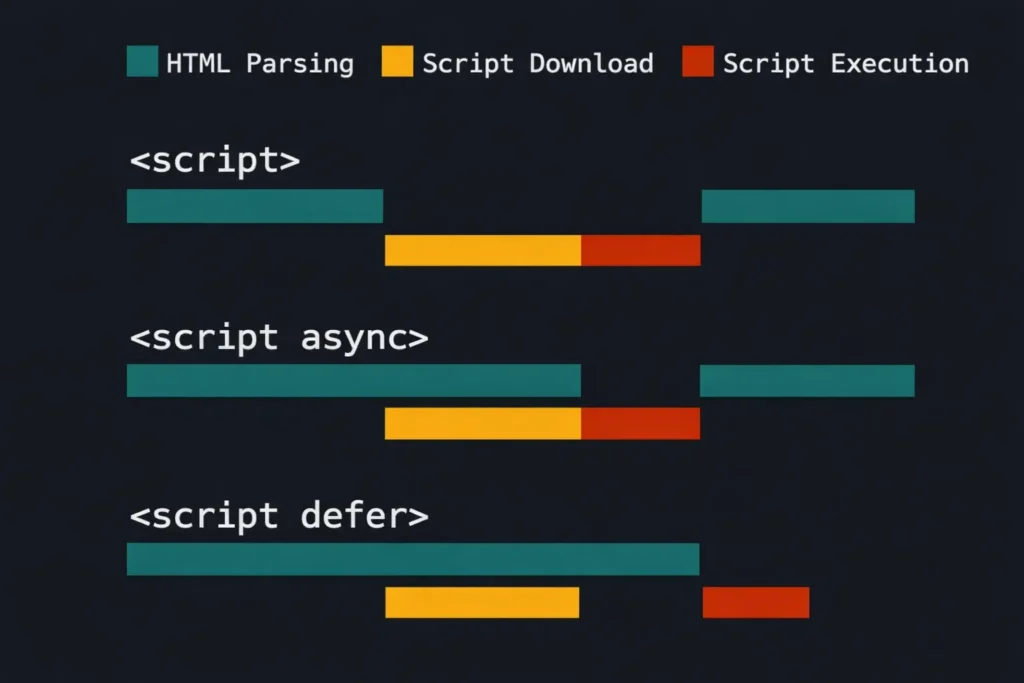
This Short in particular explains the JavaScript aspects of this: https://youtube.com/shorts/3peCiMg332o.
Make sure to also cleanup your JS so it does not block the rendering of the webpage.
Extra Tip – PageSpeed Insights
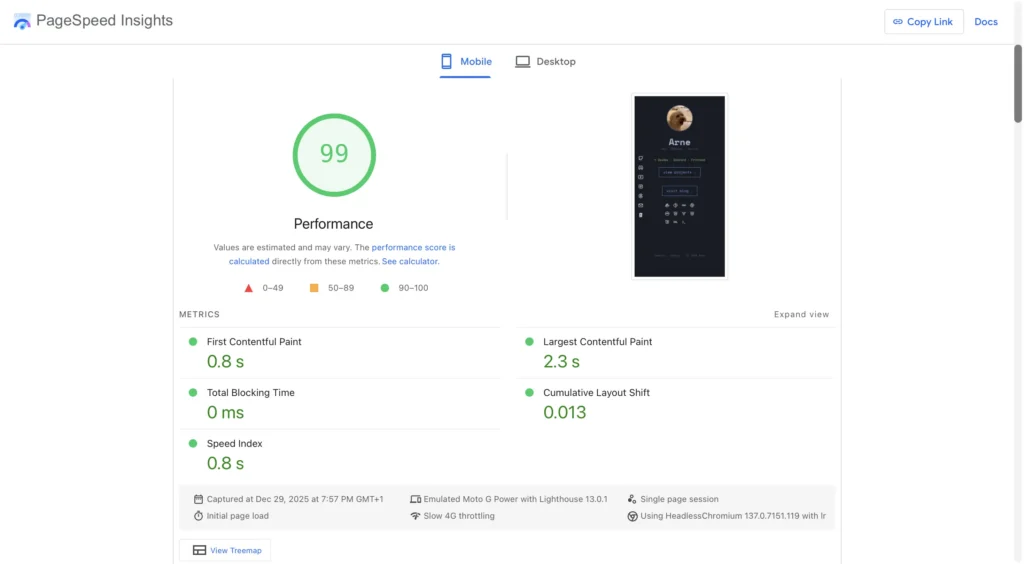
If you want to see what is wrong with your site and why it takes so long to load, you should check out https://pagespeed.web.dev. You get a speed score for both desktop and mobile devices. It tells you some tips to make your sites faster and also checks SEO and accessibility. A Finished analysis might look like this one: https://pagespeed.web.dev/analysis/https-arne-sh/h1zf2ziuod. In this case it tells me to make the Favicon smaller. It can also tell you about your Core Web Vitals Assessments.
All suggestions reflect my own experience; I am not sponsored or paid.